Install SGO-1
Before you start, find the label in the box. It has your SGO WiFi name and password, Device ID, and activation code.
Wire and mount
Connect SGO-1's two wires to the push-button terminals on your opener, where the wall button's wires connect. The wires have a direction: + goes to +, and COM goes to COM. See Which wire goes where. Then mount SGO-1 on the wall.
Plug in power
Plug in the 5V adapter. The yellow light blinks, which means SGO is waiting for WiFi.
Connect to WiFi
On your phone, join the SGO WiFi network from your label. Open
192.168.4.1in your browser, enter your home WiFi name and password, and tap Save & Connect. When the page says Saved! Restarting..., close it. SGO restarts, and the yellow light turns solid once it's online.Register in the app
Open the SGO app and tap Register New Device. Enter your Device ID and activation code from the label, then your email, a password, a passcode and a name for your garage. Tap Register Device, then log in with your email, password and passcode.
Your passcode is 4 to 8 letters or numbers, your choice. 8 is the safest. The app asks for it every time you open or close the door.
Each device can be registered only once, so pick the email you'll keep.
Which wire goes where
SGO-1's wires: + is the [PLACEHOLDER: color of SGO-1's + wire] wire, COM is the [PLACEHOLDER: color of SGO-1's COM wire] wire.
- Chamberlain, LiftMaster, Craftsman: + is the red terminal, COM is the white terminal.
- Genie and other brands: + is marked PB, + or 1. COM is marked COM, − or 2.
Go by the terminal on the opener, not the color of the wall-button wires. Installers don't always use matching colors.
Have a meter? Set it to DC volts and touch the two terminals. A positive reading means the red probe is on +.
Wires the wrong way round? Nothing gets damaged, but your wall button stops working and SGO can't open the door. Unplug SGO-1, swap the two wires, and plug it back in.
SGO works with almost any home WiFi, including routers that use one network name for both 2.4 GHz and 5 GHz. It picks the 2.4 GHz band by itself, so just enter your normal WiFi name. Only if your router has a separate network that is 5 GHz only, choose your other network instead. After step 3, reconnect your phone to your home WiFi.
Install SGO-3
SGO-3 doesn't wire to your opener. It presses a real Chamberlain remote for you. The remote comes in the box, connected to SGO-3 and held in the slide holder beside it.
Pair the remote with your opener
Do this first, with the remote in your hand. Follow How to pair the remote below, then press the remote button by hand: the door should move.
Mount SGO-3
Slide the remote back into its holder on SGO-3. Mount SGO-3 on the wall where the camera sees the door and the area in front of it.
Plug in power and connect to WiFi
Same as SGO-1: plug in the 5V adapter, join the SGO WiFi from your label, open
192.168.4.1and tap Save & Connect.Register in the app
Open the SGO app, tap Register New Device and enter the details from your label. Then tap TOGGLE: SGO-3 presses the remote for you after the camera preview and the warning.
How to pair the remote
Find the LEARN button on your opener motor (usually next to the antenna wire or under the light cover) and note its color.
Yellow, purple, orange, red or green LEARN button:
1. Press and hold both remote buttons together until the blue light on the remote stays on (about 6 seconds).
2. Press and release the opener's LEARN button.
3. Within 15 seconds, press and release the remote button [PLACEHOLDER: top or bottom, the one wired to SGO-3] three times. The blue light flashes.
4. When the door starts to move, press any remote button within 3 seconds.
White LEARN button: press and release LEARN, then within 30 seconds press and hold the remote button until the opener light flashes or you hear two clicks.
Other brands (Genie, Overhead Door, Linear and more): hold both remote buttons until the blue light stays on, put your opener into programming mode as its manual describes, then press the remote button three times and confirm when the door moves.
Works with
The included Chamberlain universal remote (model CHU62, FCC ID HBW16329X1) works with most openers made since the 1990s that have photo-eye safety sensors near the bottom of the door: Chamberlain, LiftMaster, Craftsman and Raynor (1993 and newer), Genie and Overhead Door (1995 and newer), Linear, Wayne Dalton, Ryobi, Sommer and more.
Tested by us with SGO-3: Chamberlain/LiftMaster openers with a yellow LEARN button (Security+ 2.0) and a green LEARN button. Not sure about yours? Send us a photo of the LEARN button.
Watch the setup
The full installation from start to finish.
What the lights mean
On the device
Yellow blinking
Not connected to WiFi. Finish WiFi setup, or check your router.
Yellow solid
Connected to WiFi and online.
White flashing with beeps
The door is about to move: 10 flashes, then it opens or closes.
In the app
Green
Your SGO is online and ready.
Red
Your SGO is offline. Check its power and your WiFi.
Inside the SGO app
Everything you need is on one screen. Here's what each part does.
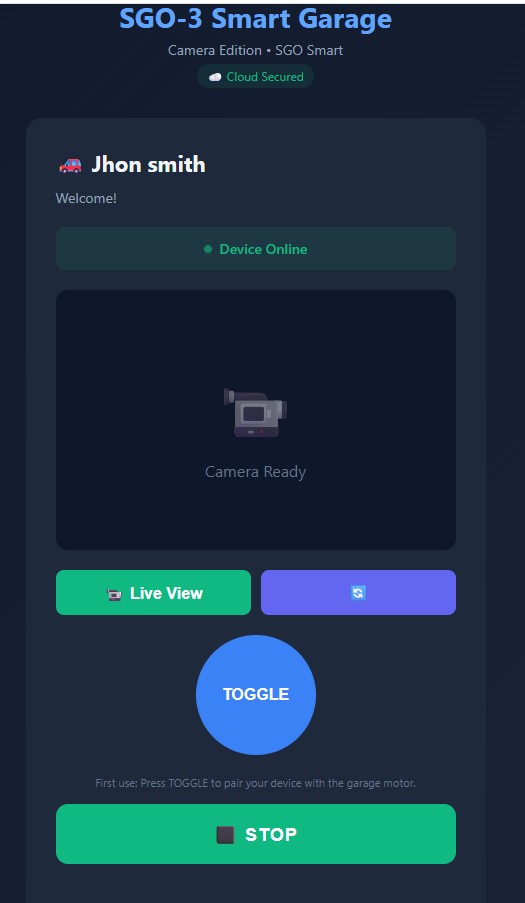
Home screen
What you see when you log in.
- Your name
- Shows you're in your own account.
- Device Online
- Green means your SGO is connected and ready. Red means offline: check the power adapter and your WiFi, then look at the yellow light on SGO. If it is flashing, SGO needs to connect to WiFi again: join the SGO WiFi from your label card, open 192.168.4.1 and tap Save & Connect.
- Camera panel
- Shows "Camera Ready" until you start the live view.
- Live View
- Starts the live camera so you can see your garage right now.
- Rotate
- The purple button with arrows turns the camera picture. If the live view shows your garage upside down, tap it until the picture is the right way up. The app remembers your choice.
- TOGGLE
- Opens the door if it's closed, or closes it if it's open. The app asks for your passcode. SGO first shows you the camera for 10 seconds so you can check the garage is clear, then beeps 10 times with its white light flashing before the door moves.
- Messages under TOGGLE
- SGO tells you here when it cancels, for example when the camera saw movement in the garage. See The person in the garage comes first.
- STOP
- Stops the door instantly, during the countdown or while it moves. No passcode needed. The button flashes red for a second to confirm.
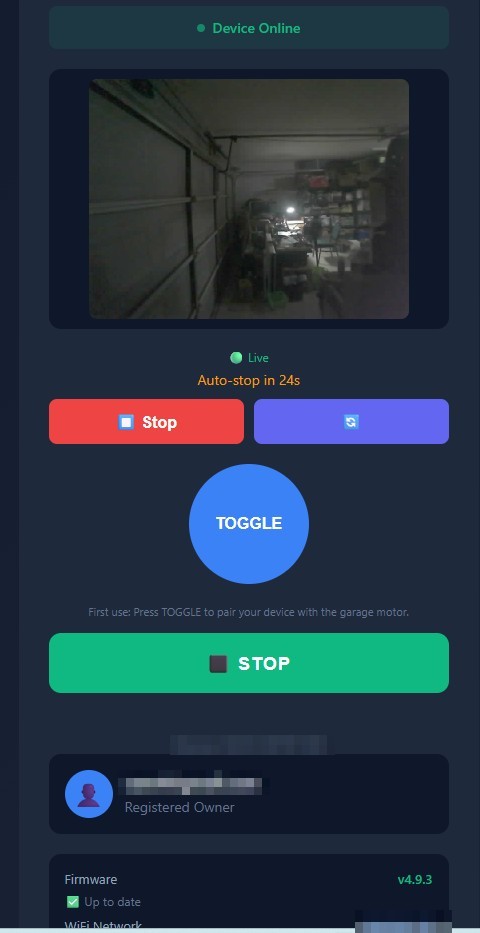
Live view
After you tap Live View.
- Camera picture
- A live view of your garage. Check whether the door is open, and whether anything is in the way before you close it.
- Needs light
- SGO has no night vision. During TOGGLE it turns on its own light, but Live View on its own doesn't. If the picture is black or very dark, turn on the garage light or the opener light first.
- 💡 Light helps
- Light helps SGO keep your garage safe. SGO's camera is also a motion detector: it watches the garage before the door moves and cancels if it sees movement, like a person, a car, or the door moving from your wall button or remote. SGO turns on its own light during the countdown, but the camera works best when the garage has more light. For the best protection, keep your opener's light working (most openers turn it on as soon as the door moves) or add a motion-sensor light in the garage.
- Live
- The green dot confirms the picture is live, not a saved image.
- Auto-stop countdown
- Live view ends on its own after the countdown. Tap Live View again any time to restart it.
- Red Stop button
- While live view is on, the Live View button turns red and reads Stop. It ends the video only. It doesn't affect the door.
To stop the door, use the large STOP button under TOGGLE.
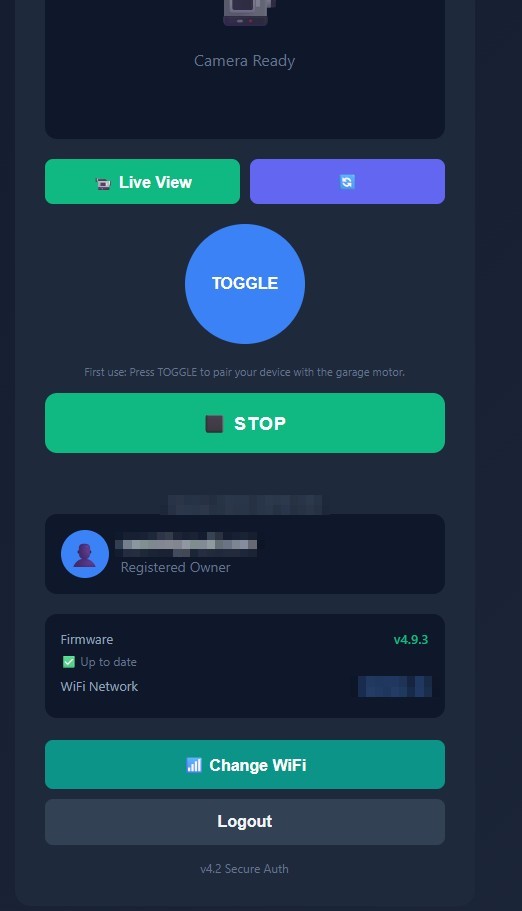
Device and account
Scroll down below STOP.
- Device
- Your Device ID, the same one printed on your label.
- Registered Owner
- The email of the account that owns this device.
- Firmware
- The software version running on your SGO. "Up to date" means you have the latest.
- WiFi Network
- The WiFi network your SGO is connected to right now.
- Change WiFi
- Move SGO to a different WiFi network, for example after you get a new router, without resetting the device.
- Logout
- Signs you out on this phone or computer. Your SGO keeps working.
Put the app on your home screen
There's nothing to download from an app store. Add it to your home screen once and it opens like any other app.
iPhone (Safari)
- Open the SGO app in Safari.
- Tap the Share button at the bottom.
- Scroll down and tap Add to Home Screen.
- Tap Add.
Android (Chrome)
- Open the SGO app in Chrome.
- Tap the menu (three dots).
- Tap Install app or Add to Home screen.
- Tap Install.
On a computer, just open the app in any browser.
Login help
You log in with your email, password, and passcode.
- Forgot your password or passcode? Use the reset option in the app with your email, Device ID, and activation code.
- Locked out? After 5 wrong login attempts (wrong password or wrong passcode), the account locks for 15 minutes for your security. Wait, then try again. Forgot your password? Tap "Forgot Credentials?" on the login screen and use the activation code from your label card.
- Keep your label private. Your Device ID and activation code together work like a key to your garage. Don't post photos of the label online.
Still stuck? Contact us.